Report
The Report tab shows the results of your last scan. This is where you review how your content is connected.
The Overview Table
The main report screen lists every scanned item in a table. Each row shows:
Title:
The name of the post, page, or term. Click it to see the full link details.Incoming:
How many internal links point to this item.Outgoing:
How many internal links this item contains.External:
How many links point to other websites.Meta title:
The SEO title, pulled from your SEO plugin (if available).Meta description:
The SEO description, pulled from your SEO plugin (if available).
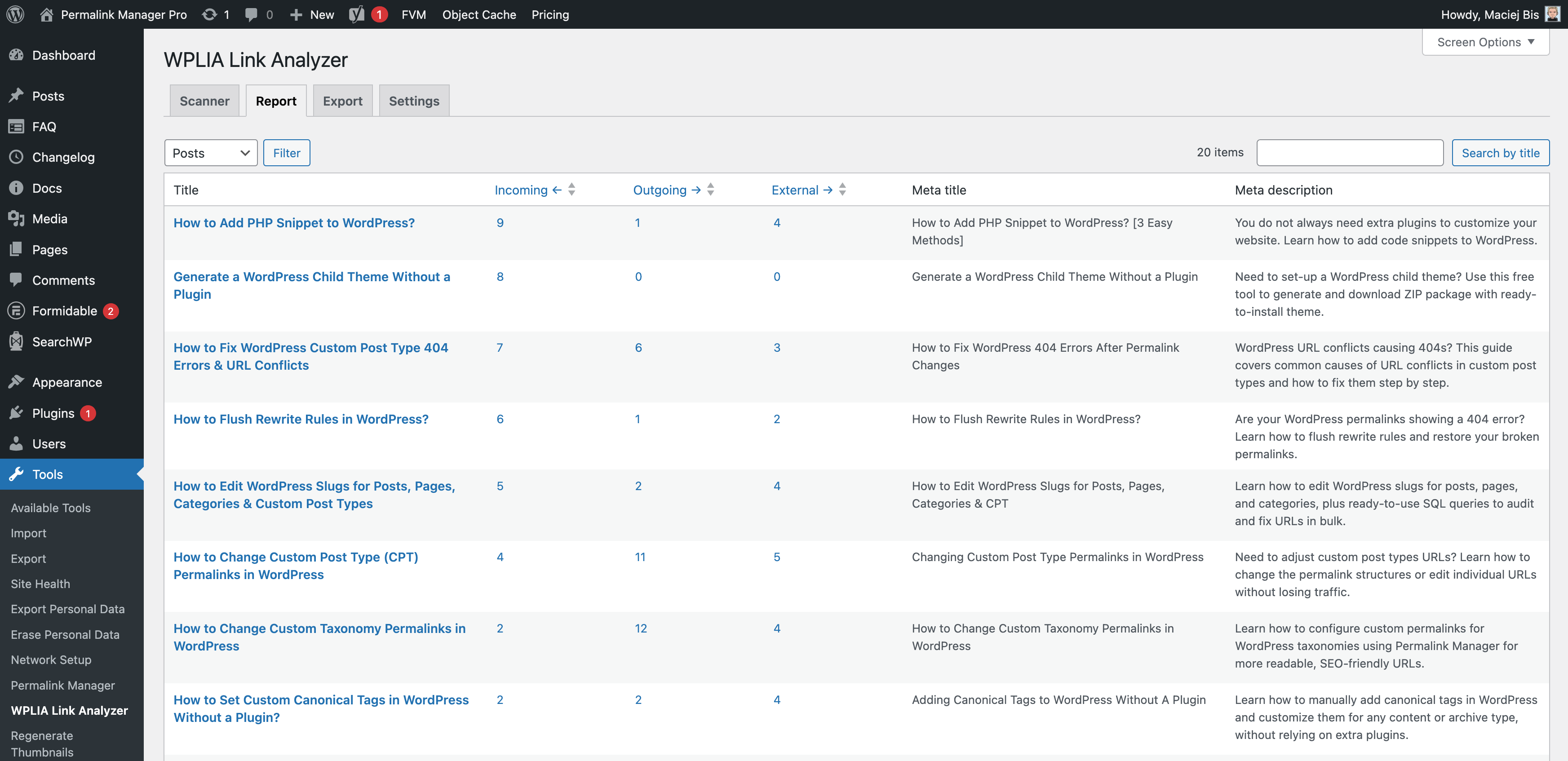
Click any column header to sort the table. Use the dropdown menu to filter by post type, or type in the search box to find a specific title.
Customizing the Table Columns
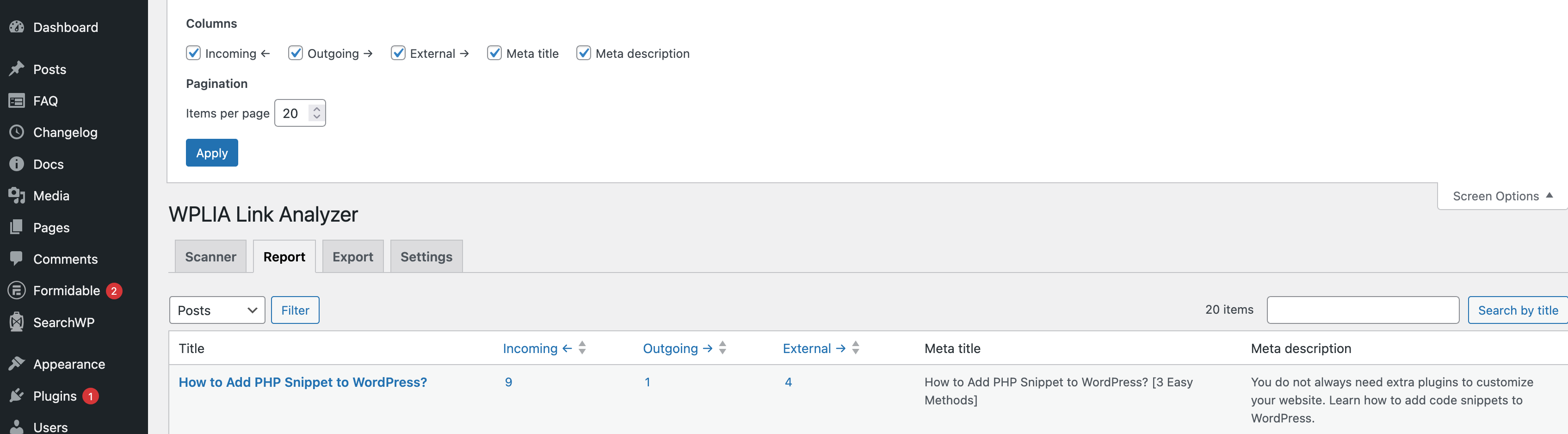
Click the "Screen Options" button in the top right corner of the page. A panel drops down where you can show or hide individual columns.
Check or uncheck the boxes for Incoming, Outgoing, External, Meta title, and Meta description to control what appears in the table. You can also change the number of items shown per page.
Click Apply to save your preferences.
Extra Column in Admin Dashboard
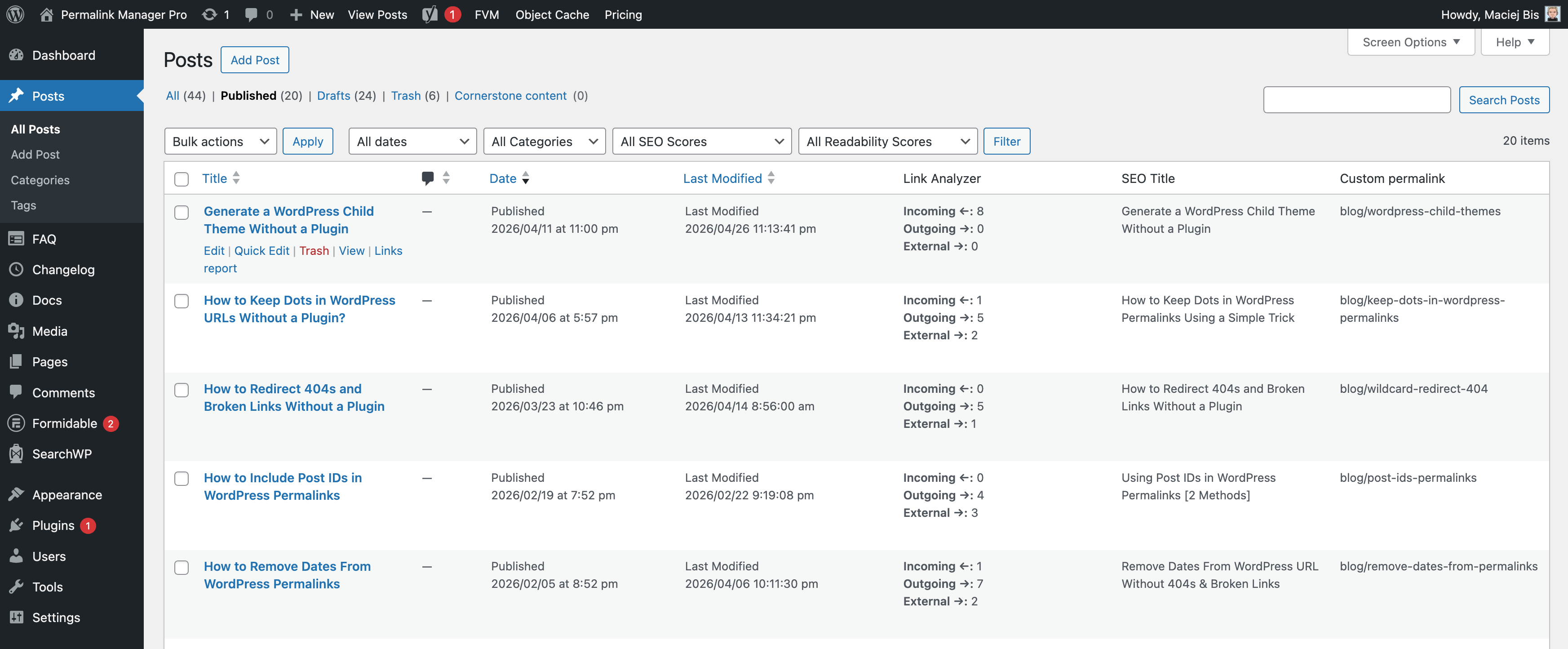
When the plugin is active, an extra "Link Analyzer" column appears in your native posts/terms list tables. This column shows the incoming, outgoing, and external link counts for each item at a glance.
Click the "Links report" link below the title to jump directly to the single item detail view.
Single Item Detail View
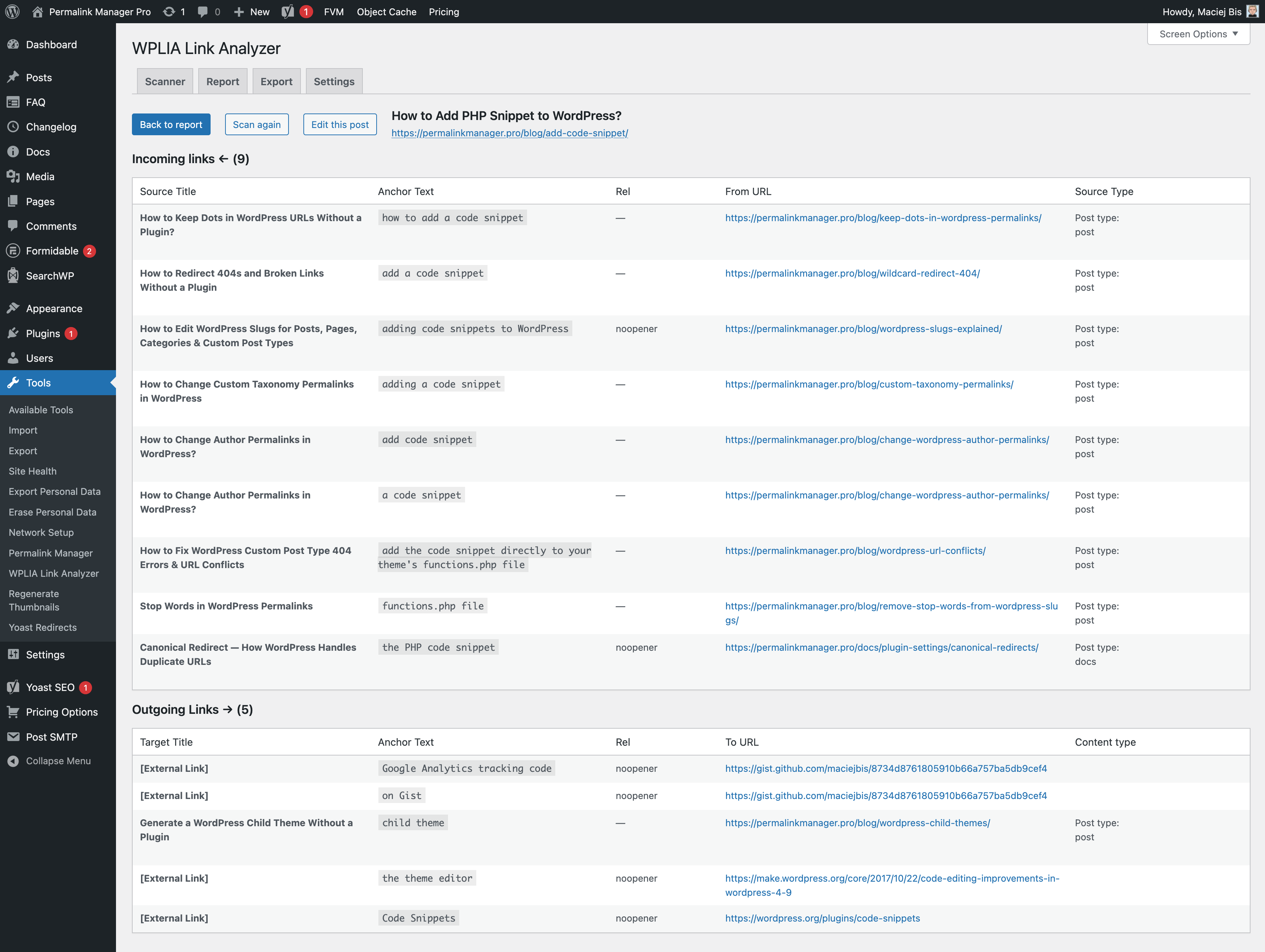
Clicking a title in the report table opens the detail view for that item. Here you will find two lists. Each row in both lists includes the target title, anchor text, rel attribute, destination URL, and content type.
Incoming links shows every piece of content that links to the current item.
Outgoing links covers all links placed inside this item, with external links clearly marked.
Three buttons are available at the top of the screen. Click "Back to report" to return to the main table, "Scan again" to run a fresh scan on the current item, or "Edit this post" to open it directly in the WordPress editor.